Getting Started with Student Search
Student Search is a fully integrated student search tool that allows users to easily search for students based on specific filter criteria or copy/paste a student list to generate the Index in Infinite Campus.
Selecting Filters
Users with Tool Rights to Student Search can set specific filter criteria to generate a student name list. Start by clicking in the Select Filters box at the top to open the filter dropdown list.

Select the desired filter(s). There is no limit on the number of filters selected.
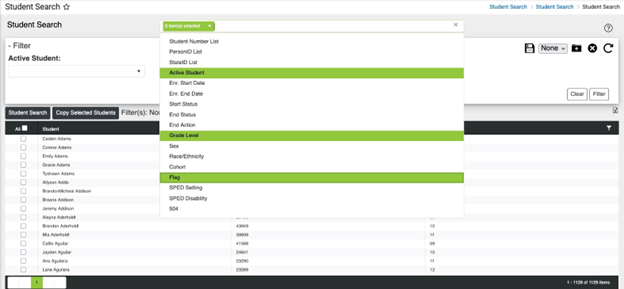
As filters are selected, they will appear in a list in the Filter section at the top. Based on the selection(s), select criteria for each filter that will be applied to the student search. If multiple criteria is selected within one filter, ‘OR’ conditions are applied. For example, if 9th and 10th grade are both selected for Grade Level, search results will return students that are either in 9th grade OR in 10th grade.
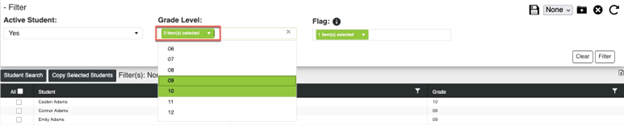
When multiple different filters are selected, ‘AND’ conditions will apply to the specific criteria selected. For example, if Yes is selected for Active Student, 9th grade is selected for Grade Level and 504 is selected for Flag, search results will return any students who have an active line of enrollment, are in the 9th grade AND have a 504 flag added in Infinite Campus.

Once criteria has been selected for all filters, click Filter.

Student Search results will display in a list with the student’s name, student number and grade level.
Click the Clear button if a filter is loaded that needs to be cleared.

Student Search Dashboard
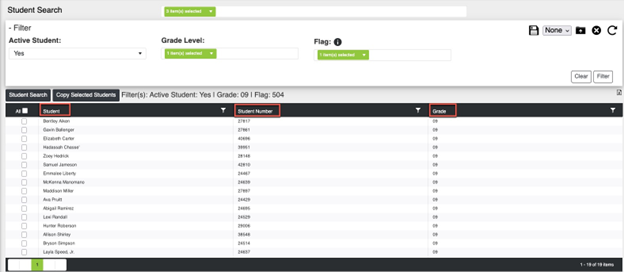
Click once on any column header to sort the column ascending, click twice to sort descending, and click a third time to clear the sort.
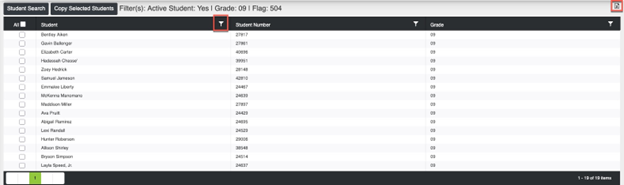
Columns can be filtered by clicking the  icon.
The student list can also be exported to Excel by clicking the
icon.
The student list can also be exported to Excel by clicking the  icon in the top right.
Search in Infinite Campus
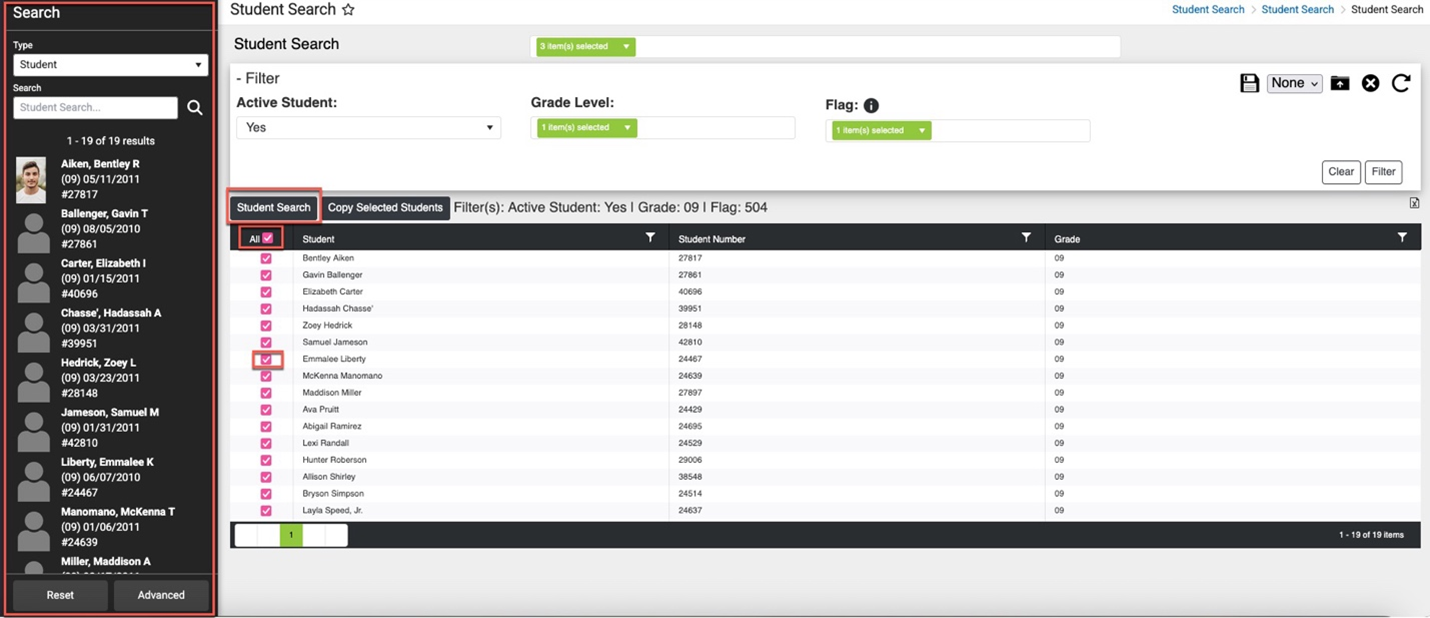
To pull students from results into the Index in Infinite Campus, check the box next to the student(s) name(s). Check the box next to All to select all students. Then, click Student Search. The selected students will populate on the left in the Index.
Copy PersonID List
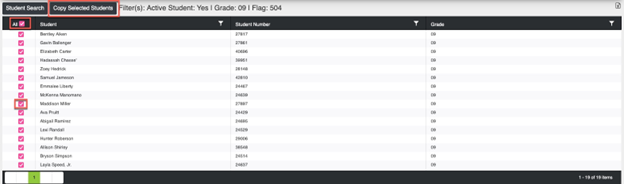
To copy a list of Person IDs from the search results, check the box next to the student(s) name(s). Check the box next to All to select all students. Then, click Copy Selected Students.
Create Template and Ad Hoc Filter
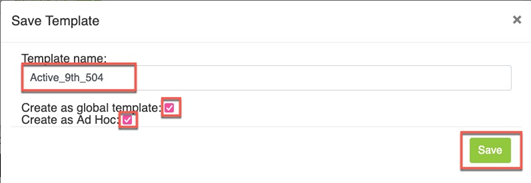
To save the filter currently selected, click the Save icon.

Enter the Template Name. Select the Create as global template checkbox if other users should be able to see this template in their dropdown list. If left unchecked, no other users will be able to see the Saved template. To create an Ad Hoc filter with the template, select the Create as Ad Hoc checkbox. Then, click Save.
Click in the dropdown to select a template to use. Templates with a [G] are global templates.

Then, click the Load icon to load the template.

Click the Delete icon to delete a template.
NOTE: The user who created a global template will be the only person who can delete the global template unless a user has Delete Tool Rights to the Student Search tool. Delete Tool Rights will allow a user to delete any global templates.

Click the Refresh icon to clear the template and start over.

An Ad Hoc filter created from a template can be found under Reporting > Ad Hoc Reporting in Infinite Campus. It can also be used to populate the Index in Campus by selecting the Advanced option at the bottom of the Index.
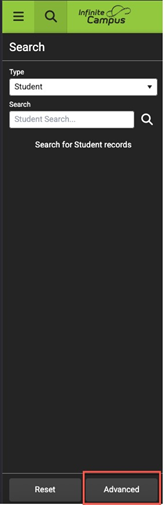
Scroll to the bottom of the Advanced Student Search and click the Select Filter button.
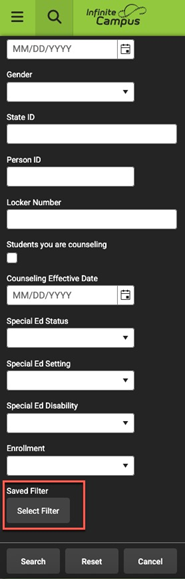
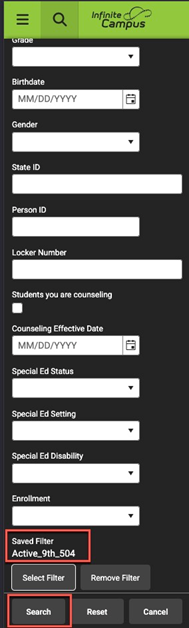
Select the filter from the list and click Search.
Search from Person IDs, Student Numbers, State IDs
To search for students using a list of Person IDs, select the PersonID List option in the Filter dropdown.
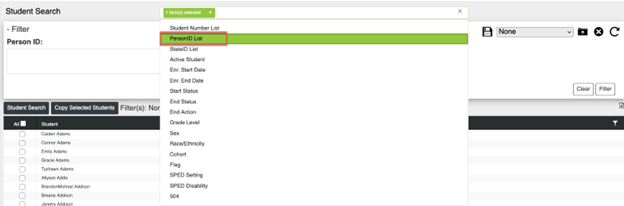
The Person IDs can either be copied/pasted into the Person ID criteria box or can be individually typed. Then, click Filter. Students with a matching Person ID will populate in the search results.
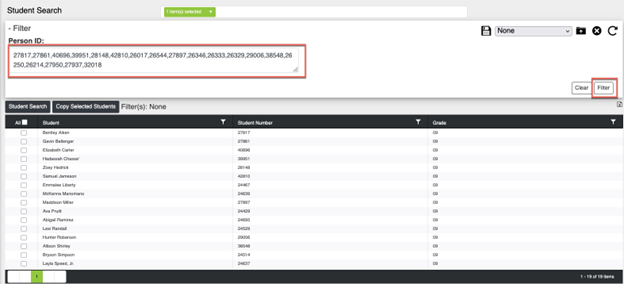
If any Person ID(s) do not match with a student in Infinite Campus, the No Matching Identifier button will appear after clicking Filter.
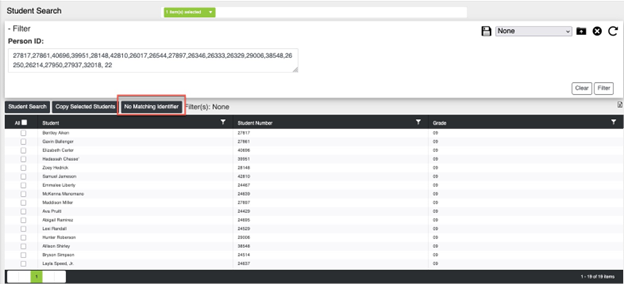
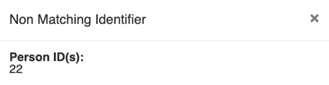
Click the No Matching Identifier button to view the Person ID(s) entered in the filter that did not have a match.
These same steps will apply when searching for students using the Student Number List filter and the StateID List filter. Confirm the correct filter is selected based on the student identification number that is being entered.
All Schools Version
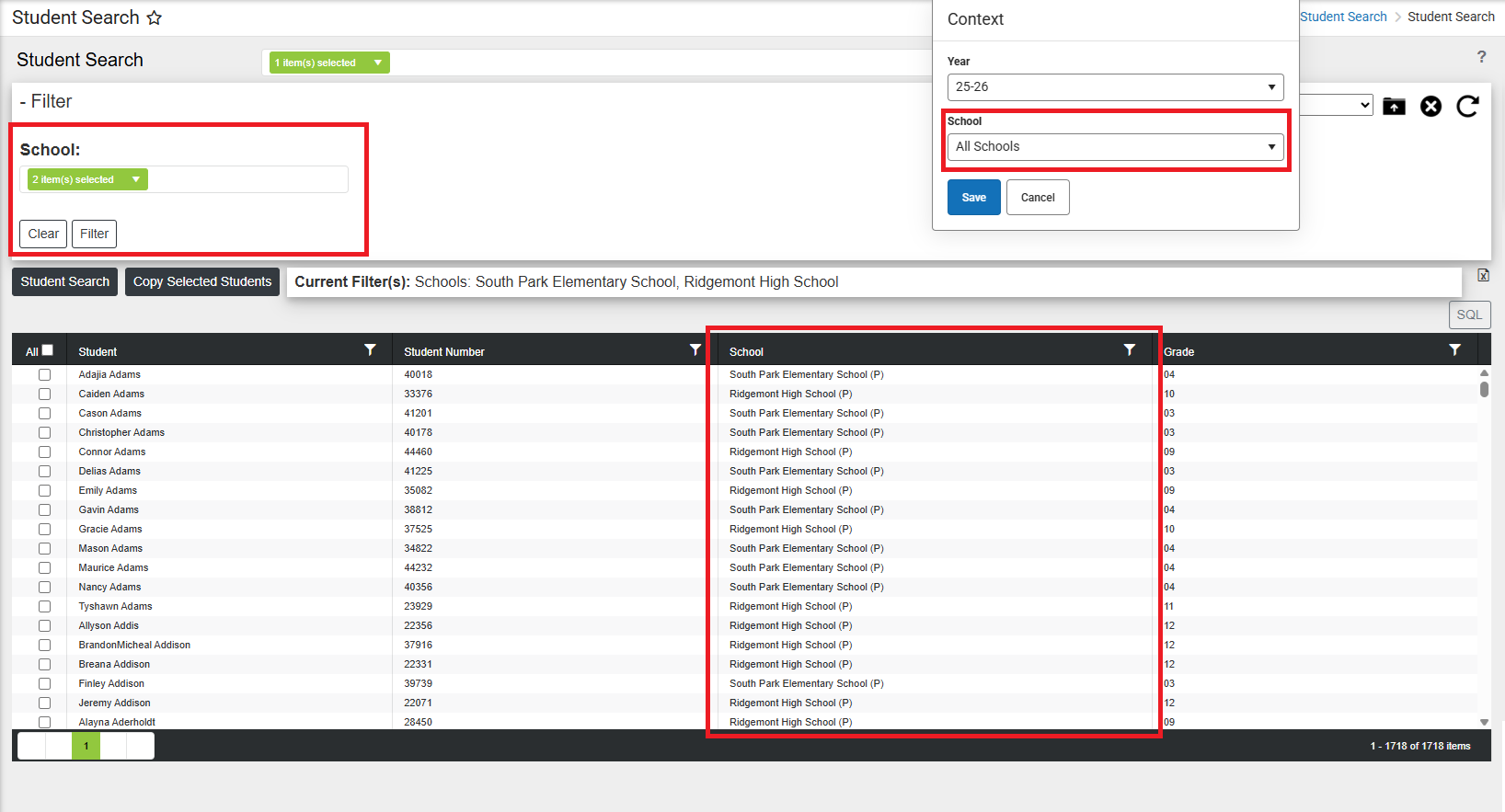
If the user has access to the All Schools option in the Campus calendar selector, they can view an All Schools version of the Student Search tool.
The All Schools version functions similarly to the normal version except that it displays results across all schools. This version contains a filter that allows the user to sort results by school, and a School column is added to the table.