Sub Overview
The Sub Overview Dashboard allows the user with tool rights to view all assignments by substitute.
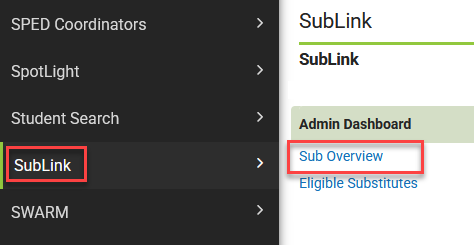
- From the Main Menu click on "SubLink."
- From the flyout click on "Sub Overview."
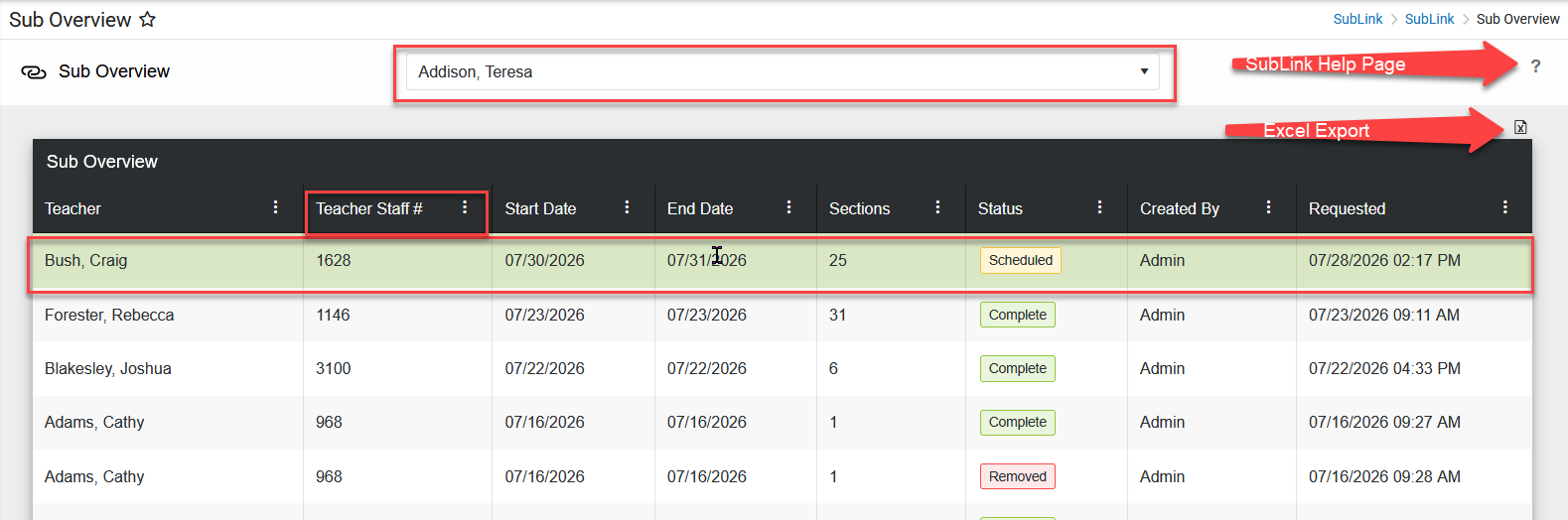
- The Sub Overview dashboard view allows users with tool rights to view all the assignments for a specific substitute in the school calendar selected.
- At the top of the dashboard select the Substitute you want to view.
- Each column can be sorted by clicking on the column name. The first click sorts ascending (A to Z), the second click sorts descending (Z to A), and the third click clears the sort (default sort by most recent assignment).
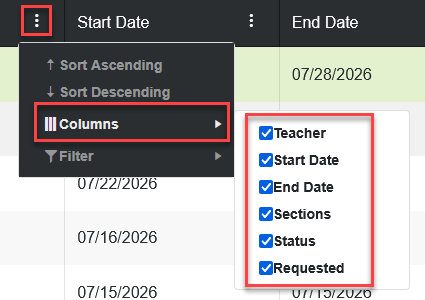
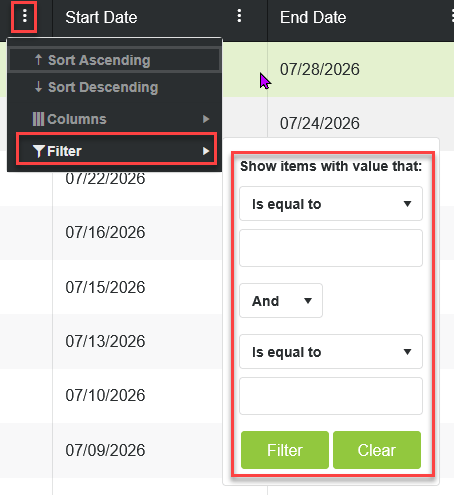
- Clicking on the three vertical dots in the column header opens additional options.
- Sort Ascending (A to Z)
- Sort Descending (Z to A)
- Columns, allows you to hide columns from view or add columns back to view. Refreshing your screen or leaving the dashboard resets the view to all columns.
- Filter, allows you to filter to a specific value in that column.
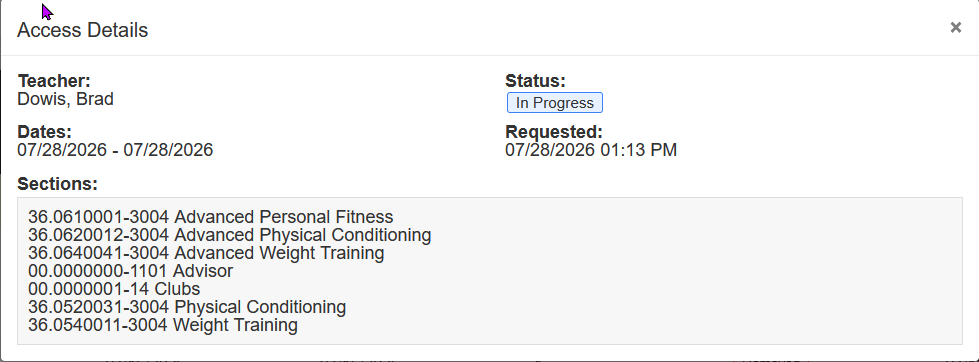
- Clicking anywhere in an assignment row opens an "Access Details" pop-up box that displays the details of that assignment. No changes can be made from this pop-up box.
- Click the x or anywhere outside of the pop-up box to close.
- If you click on the question mark in the upper right corner of the SubLink Admin Dashboard it will open the SubLink Help Page.
- If you click on the Excel icon below the question mark it will download the dashboard to Excel.
- Note: If you have sorted, filtered, or hidden columns in the dashboard the Excel download process does respect those selections.