Parent Portal
Creating a Request (Parent)
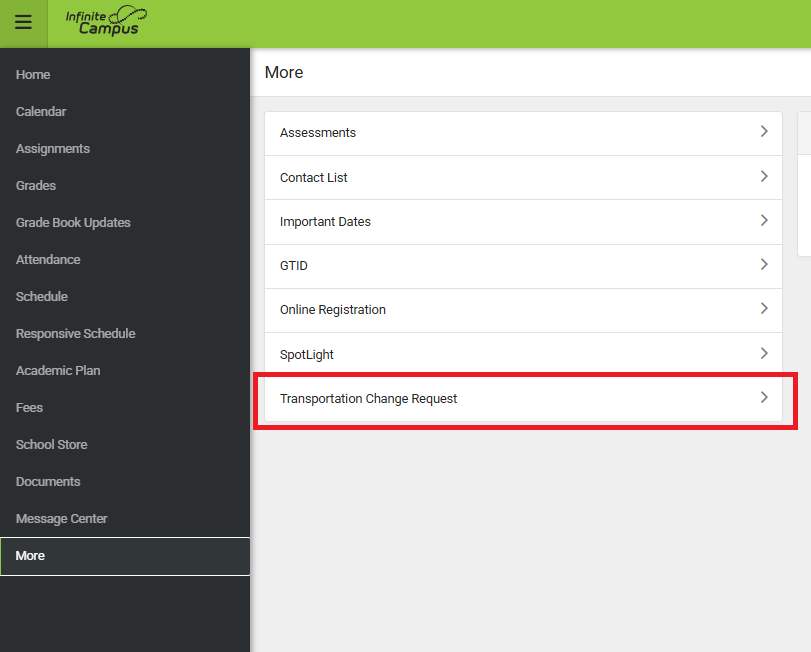
Once your district has configured TCR, parents will see the following option on their Parent Portal:
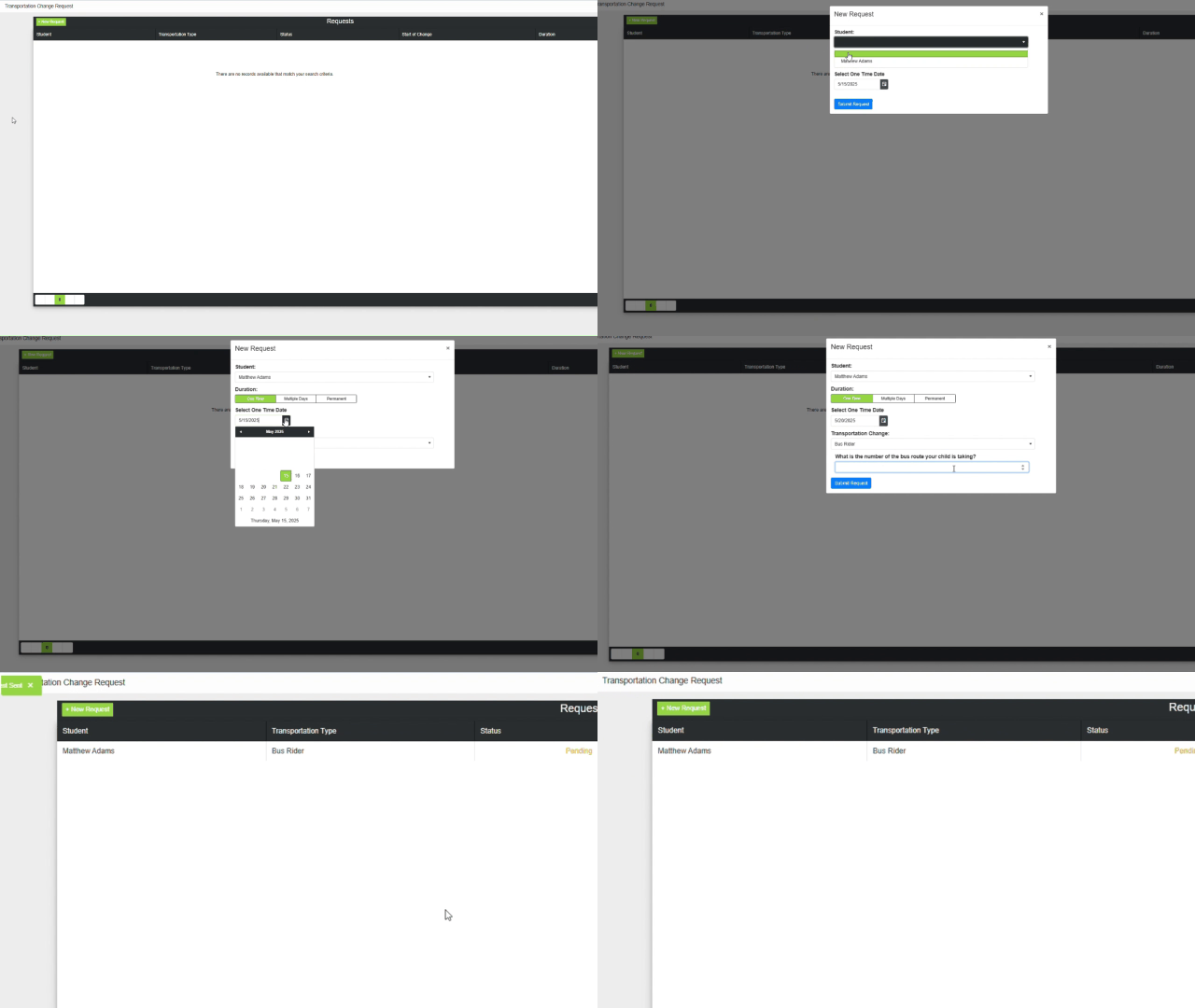
Once the user has navigated to the main Parent Portal dashboard, a table displaying any outstanding TCR requests will appear. The student, transportation type, status of the request, relevant date, and duration will be displayed.

To create a new TCR request, the user can click the "+ New Request" button in the top left of the dashboard. There, the user can enter the following details for the request:
- The name of the student whom the request is for
- The duration of the transporation change: One Time, Multiple Days, or Permanent
- If the user selects Multiple Days, each selected day will appear to the right hand side.
- The transporation type that the change request is related to
- If your district has setup any questions to be answered about this transportation type, those questions will appear underneath the transportation type dropdown.
The animation below shows off this process in action.
Cancelling a Request (Parent)
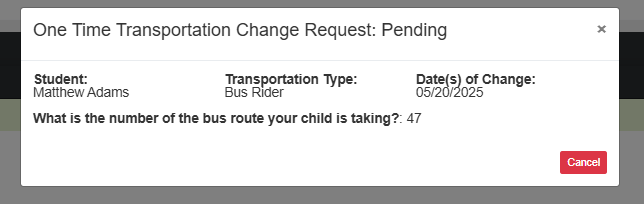
To cancel an TCR request, click the row that contains the request in the dashboard table, and then click the "Cancel" button in the information box that appears.